
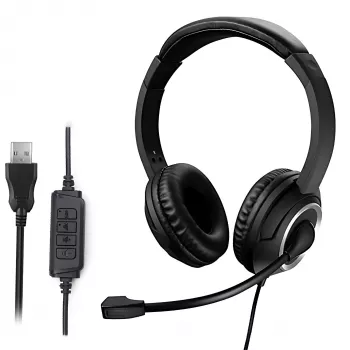
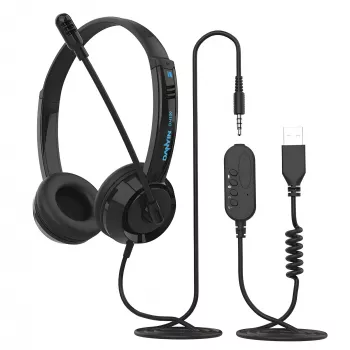
A reliable wired USB headset can remove the daily friction of dropped Bluetooth connections, inconsistent mic levels, and background noise during calls. For desk work, the priorities are simple: microphone clarity, stable USB audio, long-wear comfort, and quick setup across common conferencing apps—so conversations stay clear from the first plug-in.
A USB wired headset is a practical fit for teams and individuals who spend their day on voice calls and need consistent, repeatable audio results.
Call quality is usually decided by the microphone and the connection—not by how “big” the sound feels for music. A good desk headset focuses on intelligibility and stability.
If troubleshooting is ever needed, the fastest path is usually checking system sound settings first. Microsoft and Apple both provide clear step-by-step help for device selection and input/output issues: Microsoft Support — Fix sound or audio problems in Windows and Apple Support — Change sound settings on Mac.
“Noise canceling” on a call-center style mic typically means background reduction and voice prioritization—not total silence. Results improve a lot with correct positioning and a few app settings.
Before an important meeting, a quick audio test can prevent “Can you repeat that?” moments. Zoom’s pre-meeting workflow is a solid reference even if using other apps: Zoom Support — Testing audio before a meeting.
Comfort determines whether a headset feels “fine” for 20 minutes but distracting by hour three. For long call blocks, small design choices matter.
Most modern Windows PCs and macOS laptops recognize USB audio devices automatically. The key is ensuring the same headset is selected for both input (mic) and output (speakers), especially if a laptop also has built-in speakers and a built-in mic.
| Step | Where to Check | What “Good” Looks Like |
|---|---|---|
| Select output device | Sound settings / menu bar volume | Headset is the active speaker device |
| Select input device | Sound settings / input | Mic level meter moves when speaking |
| App device selection | Audio settings inside Teams/Zoom/Meet | Same headset chosen for mic and speaker |
| Test call | Built-in test feature | No echo, clear voice, stable volume |
| Mute discipline | Inline button or app control | Mute toggles instantly and reliably |
Yes. Most Windows PCs and macOS laptops support USB audio headsets as plug-and-play devices. After connecting, select the headset as the default mic and speaker in system settings and confirm the same device is chosen inside your meeting app.
Place the boom mic close to the corner of your mouth, then lower the input gain so it isn’t over-sensitive. Turn on noise suppression in the meeting app, keep the mic out of direct airflow, and reduce speaker volume to minimize echo pickup.
Echo is often caused by the wrong output device being selected (laptop speakers instead of the headset) or by speaker volume being too loud. Switching both input and output to the headset and lowering playback volume usually fixes it quickly.









Leave a comment