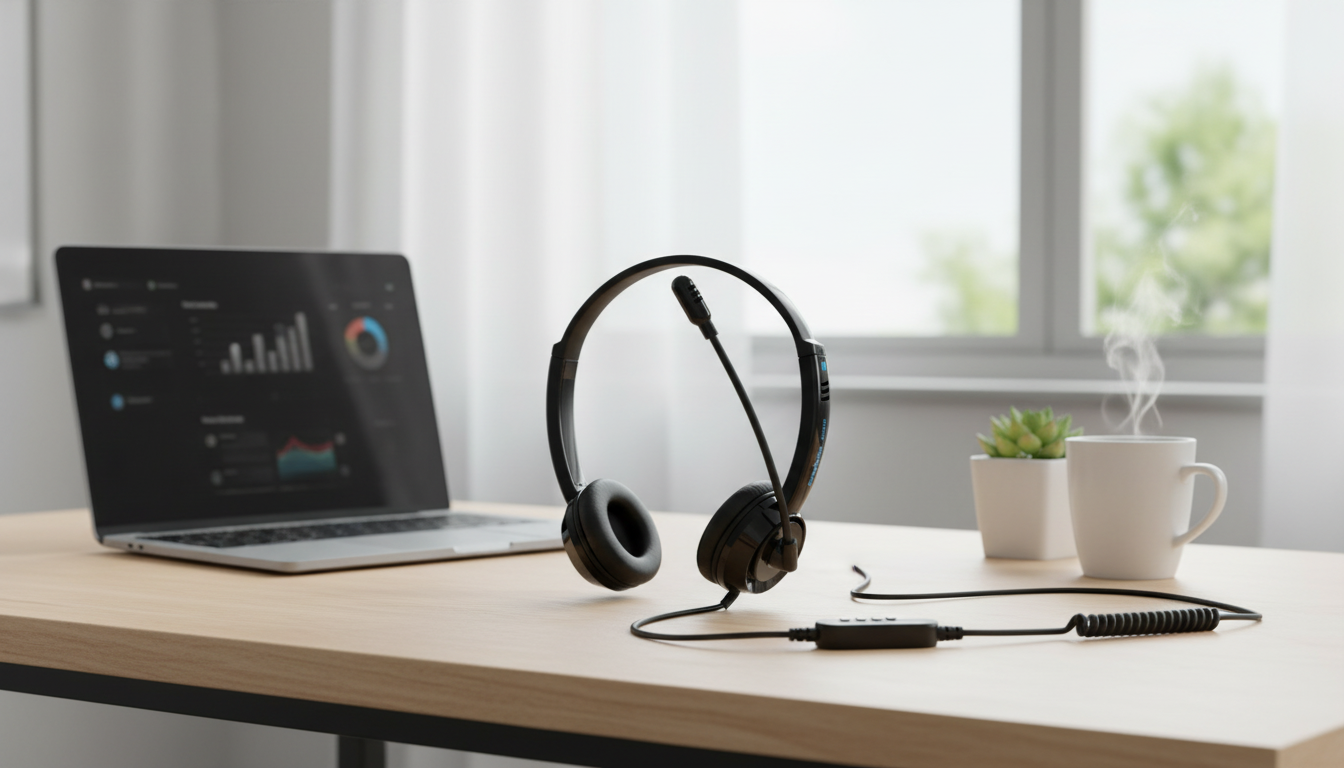
A reliable wired headset can simplify online meetings, remote classes, and voice chats by delivering stable audio and a consistent microphone connection. This guide breaks down what matters most—fit, mic clarity, compatibility, and controls—so it’s easier to pick a comfortable, plug-and-play option for laptops, desktops, and mobile devices.
A wired headset with a built-in microphone is made for straightforward, repeatable performance—especially when voice clarity and quick setup matter more than extra features.
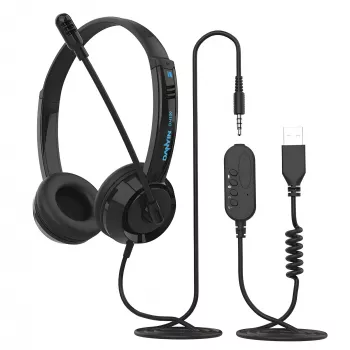
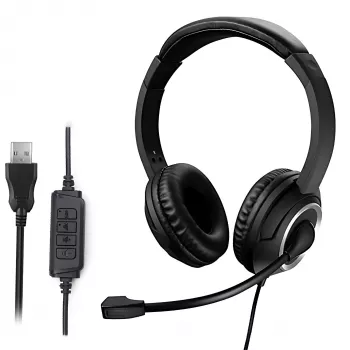
If you want a simple option that works across typical home, school, and office setups, consider the USB & 3.5mm Wired Headset with Microphone.
The “best” connector depends on what you plug into most often and how your device handles audio input/output.
| Device | Best Connection | Notes |
|---|---|---|
| Windows laptop/desktop | USB or 3.5mm | USB can be easier if the analog jack has hiss or intermittent contact |
| Mac (laptop/desktop) | USB or 3.5mm | USB is convenient for consistent input/output selection; 3.5mm works if the port supports headsets |
| Phone/tablet (with 3.5mm jack) | 3.5mm | Check whether the port supports headset microphones (TRRS) |
| Game controller (3.5mm) | 3.5mm | Good for voice chat; keep cable slack to avoid tugging during play |
| Desktop tower with separate audio ports | USB (simplest) or 3.5mm + adapter | May need a splitter if using 3.5mm for both mic and headphones |
Comfort decides whether a headset feels fine for a quick call—or becomes distracting by hour two. Fit issues also affect microphone consistency, since shifting earcups can tug the cable or move the mic away from your voice.
Wired headset microphones usually deliver dependable voice pickup—especially compared with laptop mics that can echo or capture more room noise. A few small adjustments make a noticeable difference.
If you want a quick pre-meeting check, Zoom’s guide to testing audio before a meeting helps confirm the correct input/output is selected.
For a tidy workstation that complements a wired headset setup, the Wireless Rechargeable Bluetooth 5.1 Mouse for Apple Devices is an easy add-on for smoother navigation during calls and classes.
For deeper system-level troubleshooting, Microsoft’s steps to fix sound or audio problems in Windows and Apple’s guide to changing Sound input and output settings on Mac are both practical references.
For a home office or dorm setup, pairing essentials can make daily routines easier—like keeping drinks or skincare cool between sessions with the 4L Mini Portable Fridge with Cooling & Warming Function.
It depends on the device and the port type. USB typically shows up as its own audio input/output device, while 3.5mm usually needs a headset-compatible TRRS jack (or an adapter if your computer has separate mic and headphone ports).
Echo usually happens when call audio plays through speakers instead of the headset, or when mic sensitivity is set too high. Switch output to the headset, lower mic gain slightly, and enable echo cancellation in your meeting app if it’s available.
Reseat the plug fully, try another port, and check your device’s left/right balance setting. If you’re using 3.5mm and the issue persists, switching to USB (if available) can help determine whether the analog jack is the source of the problem.










Leave a comment