
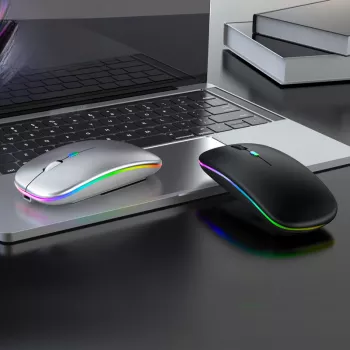
A voice-enabled mouse can reduce repetitive clicking, speed up quick notes, and make everyday navigation easier—especially during multitasking. The AI Speech-to-Text Wireless Voice Control Mouse with Bluetooth & 2.4G blends standard pointer control with speech-to-text so short dictation and quick actions can happen without switching devices. This guide explains what makes this style of mouse different, when Bluetooth vs 2.4G helps, and how to set it up for work, study, or accessibility-focused use.
A typical wireless mouse focuses on pointing, clicking, and scrolling. A voice control mouse adds an extra layer: speech-to-text and voice-triggered actions that can help you input information without moving your hands back and forth between mouse and keyboard.
Most speech-to-text accuracy is influenced by the device’s dictation engine and the environment. Built-in dictation tools on modern systems can be a helpful baseline for what to expect (for example, Windows voice typing and Apple Dictation).
Dual-mode connectivity is one of the most practical advantages of a wireless voice control mouse. Bluetooth is usually the cleanest option for modern laptops and tablets, while a 2.4G USB receiver can be the simplest choice for desktops or any computer without reliable Bluetooth.
| Feature | Bluetooth | 2.4G USB Receiver |
|---|---|---|
| Best for | Modern laptops, tablets, minimal ports | Desktops, quick setup, non-Bluetooth PCs |
| Setup | Pair in system Bluetooth settings | Insert receiver and start using |
| Port usage | No USB port required | Uses one USB port |
| Common troubleshooting | Remove/re-pair, check Bluetooth drivers | Try different USB port, avoid USB 3.0 interference |
If you’re curious about how Bluetooth works across devices, the Bluetooth technology overview explains the basics behind pairing and wireless behavior.
Voice + mouse control tends to shine in scenarios where navigation and short text entry repeat throughout the day.
Speech-to-text is often “easy when it’s set up right” and frustrating when a single permission or setting is missing. A quick checklist helps prevent the most common issues.
If voice input is an occasional feature rather than a daily need, a simpler mouse may fit better. For Apple-focused setups, the Wireless Rechargeable Bluetooth 5.1 Mouse for Apple Devices can be a straightforward option for Bluetooth pairing and everyday navigation. If you want dictation and quick voice entry built into your mouse workflow, the AI Speech-to-Text Wireless Voice Control Mouse with Bluetooth & 2.4G is designed for that hybrid click-and-speak style.
Yes, it can work in either mode as long as your computer or tablet allows microphone access and the app you’re using supports dictation or text input from voice. The connection method mainly affects how the mouse communicates wirelessly, not whether your device can process speech.
Check microphone permissions at the system level and inside the app, confirm the mic isn’t muted, and make sure the text cursor is active in a field that accepts typing. Also verify the correct language is selected, then test dictation in a different app to isolate whether it’s an app setting or a system setting.
It’s best for drafts, quick paragraphs, and short entries, while long documents usually still need keyboard time for editing, formatting, and structure. A hybrid workflow—voice to draft, keyboard to refine—tends to feel fastest and most accurate.










Leave a comment