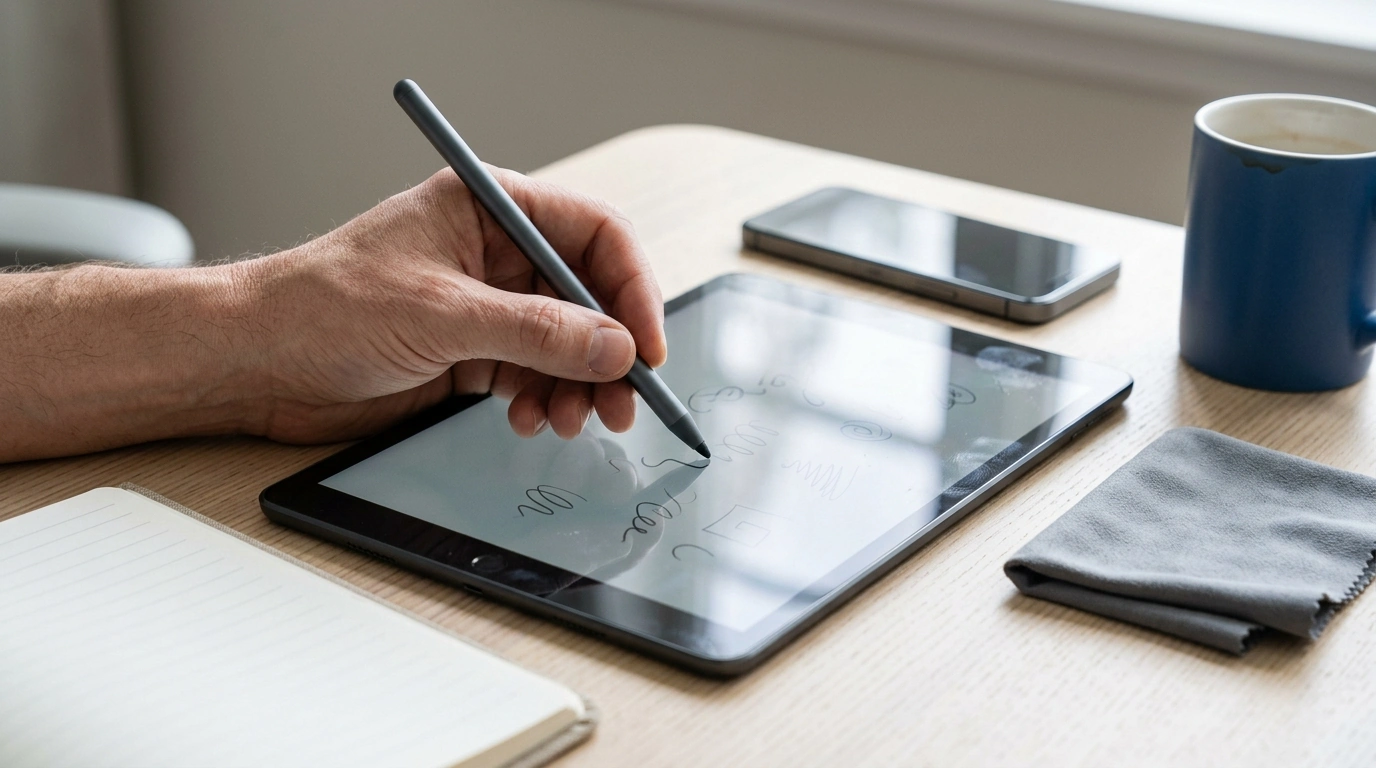
A universal stylus can make everyday screen tasks feel more precise—whether it’s jotting quick notes on an iPad, sketching shapes, signing documents, or simply scrolling without fingerprints. This guide explains what to expect from a universal stylus pen, how it works across Apple devices and other tablets, and the practical details that matter most for comfortable, reliable use.
A universal stylus is built for broad compatibility with the capacitive touchscreens used by iPad, iPhone, and many Android tablets and smartphones. Instead of relying on device-specific communication, it mimics the touch of a fingertip—only with a smaller, more controlled contact point.
That small difference often makes a big impact: it’s easier to hit tiny buttons, drag sliders without overshooting, and write with cleaner spacing than you’d get using your finger. At the same time, it’s important to set expectations. Many universal styluses don’t include advanced features found in device-specific active pens (like pressure sensitivity, tilt shading, or system-level palm rejection) unless the product description explicitly lists them.
For most day-to-day needs—notes, casual drawing, quick markups, document signing, and clean navigation—a universal stylus is a simple, low-fuss tool that can feel immediately helpful.
Universal styluses shine in tasks where a finger feels too large or imprecise. Students and professionals often reach for a stylus when they need quick annotations, while casual users appreciate having a cleaner screen and a more pen-like grip.
| Task | Why a stylus helps | Tip to improve results |
|---|---|---|
| Quick notes | More legible handwriting and better control | Use larger line spacing and zoom in when writing |
| Drawing simple sketches | Smoother curves and more accurate edges | Try a matte screen protector if the glass feels slippery |
| Document signing | Cleaner signatures than finger signing | Stabilize your hand on the table; disable screen rotation |
| Precise tapping | Easier selection of small buttons and menus | Calm, lighter taps reduce accidental double-presses |
Beyond writing and drawing, a stylus can make common gestures feel more deliberate. If you want a quick refresher on built-in touch navigation, Apple’s guides to Multi‑Touch gestures on iPad and Multi‑Touch gestures on iPhone are helpful for learning what your device can do with taps, swipes, and multi-finger movements.
Most modern iPads and iPhones use capacitive touchscreens, which generally work well with universal capacitive styluses. In many cases there’s no pairing, no Bluetooth menu, and no app setup—just touch the screen and start using it.
That said, “works” can vary in feel. Screen protectors (especially thicker or textured ones), humidity, and even how a specific app smooths handwriting can change how responsive or “ink-like” a stroke appears. If an app offers a dedicated pen mode, it can still be a good match for a universal stylus for basic strokes, highlighting, and markups—even if it won’t unlock advanced stylus-only toolsets.
When handwriting looks messy, the stylus isn’t always the issue—comfort and control matter more than most people expect. A barrel that feels balanced in your hand can reduce fatigue during longer note sessions, and a grip that doesn’t slip helps keep letters consistent.
Tip style also changes the experience:
Whatever tip style you prefer, keep it clean. Dust, pocket lint, and skin oils can interrupt contact with the screen and create the impression of skipped strokes or uneven lines.
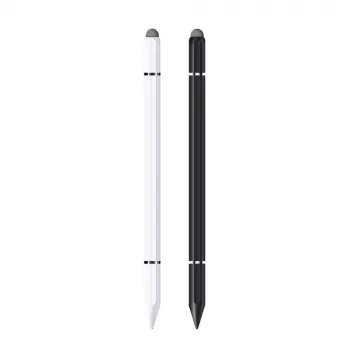
If you want a simple, budget-friendly tool for smoother everyday screen control, the Universal Stylus Pen for Apple iPad Pro, Air, Mini, iPhone & Tablets is currently available. It’s a practical pick for note-taking, document signing, quick sketches, and cleaner navigation on touchscreen devices.
For a desk-friendly setup, pairing a stylus with a compact pointer can make iPad and tablet workflows feel more like a lightweight workstation. Consider adding the Wireless Rechargeable Bluetooth 5.1 Mouse for Apple Devices for precise clicking and scrolling when you’re editing documents or browsing for longer stretches.
For families balancing screen time with hands-on learning, the Montessori Wooden Arithmetic Board can complement digital practice with tactile number work—useful for switching between tablet exercises and offline skill-building.
Most iPad and iPhone models use capacitive touchscreens, so a universal capacitive stylus typically works right away with no pairing. Results can vary depending on your screen protector and how specific apps handle handwriting and touch input.
Skipping is commonly caused by a dirty tip or screen, moisture on the glass, a thick screen protector, or an inconsistent contact angle. Cleaning the screen/tip and adjusting your grip and angle usually restores smoother input.
A universal stylus can be great for casual sketching, simple shading, and quick markups, but it often won’t include advanced features like pressure sensitivity or strong palm rejection unless those are specifically listed. For precision art workflows, a device-specific active pencil may still be a better fit.








Leave a comment