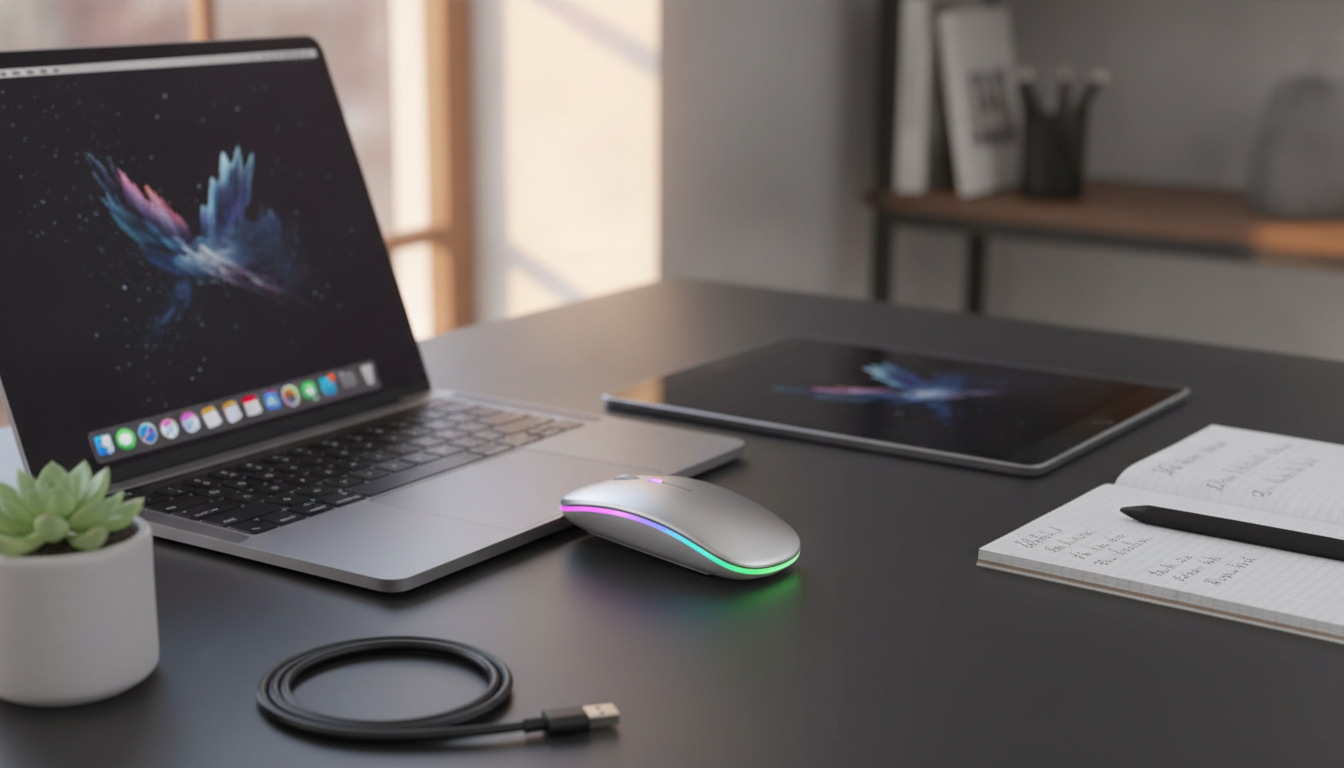
A dependable mouse can make everyday tasks on Mac and iPad feel faster and more precise—especially when it pairs quickly, tracks smoothly, and skips disposable batteries. Below is a practical guide to what matters most in a wireless rechargeable Bluetooth mouse for Apple devices, how Bluetooth 5.1 shows up in real-world use, and what to look for in comfort, compatibility, and charging.
Apple-friendly doesn’t mean “only works with Apple”—it means the mouse fits naturally into macOS and iPadOS without extra adapters, odd workarounds, or inconsistent pointer behavior. Here are the traits that typically matter most:
For official setup guidance, Apple’s support docs are useful references for pairing and pointer behavior on each platform.
Bluetooth 5.1 is designed to improve reliability and efficiency versus older Bluetooth versions. In day-to-day work, that can translate to fewer hiccups when switching apps, selecting text, or dragging files—especially if your desk also has wireless earbuds, a keyboard, or a nearby phone.
| Apple setup | What to expect | Helpful tip |
|---|---|---|
| MacBook (macOS) | Fast pairing and consistent cursor control for work and browsing | Check Bluetooth is enabled and remove old pairings if reconnecting feels slow |
| iPad (iPadOS) | Smooth pointing for multitasking, editing, and trackpad-style workflows | Adjust pointer speed and scrolling under Settings > Accessibility (Pointer Control) |
| Mac mini / iMac | Stable daily desktop use without a dongle | Keep the mouse charged to avoid mid-session dropouts |
For deeper technical background, the Bluetooth SIG Bluetooth Core Specification outlines how Bluetooth versions evolve and what features are standardized.
A rechargeable mouse is about more than avoiding battery purchases—it’s about keeping your workflow uninterrupted. A few details make charging feel effortless rather than annoying:
Even a perfectly connected mouse can feel “wrong” if the shape or click response doesn’t suit your hand. Comfort is personal, but a few universal factors can help narrow the field:
Pairing is typically quick, and after that most mice reconnect automatically.
Apple’s official steps are available here: Connect Bluetooth devices to your Mac and Use a mouse or trackpad with iPad.
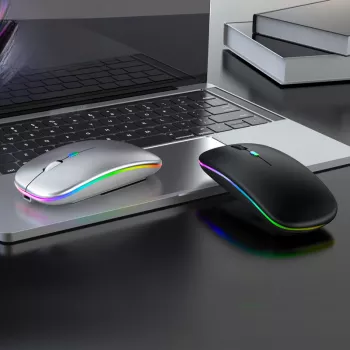
If the goal is straightforward wireless control on Mac and iPad without relying on a USB receiver, a Bluetooth rechargeable mouse keeps things simple: pair once, work normally, and recharge as needed. The Wireless Rechargeable Bluetooth 5.1 Mouse for Apple Devices is designed around that everyday Apple workflow—ideal for browsing, email, documents, and general navigation.
| Item | Details |
|---|---|
| Name | Wireless Rechargeable Bluetooth 5.1 Mouse for Apple Devices |
| Connection | Bluetooth (5.1) |
| Power | Rechargeable battery |
| Best for | Mac and iPad everyday control, travel-friendly setups |
| Availability | In stock |
Yes. iPad supports Bluetooth mice directly, so you can pair in Settings > Bluetooth without a USB adapter. Pointer behavior and extra options may appear under Accessibility settings depending on your iPadOS version.
Lag is often caused by low battery, distance/interference, too many old Bluetooth pairings, or an outdated macOS version. Charging the mouse, moving it closer, toggling Bluetooth, and removing/re-pairing the device usually resolves it.
Charge when the battery gets low or during short breaks so it’s ready when you need it. Avoid storing it fully drained for long periods, and expect frequency to vary based on daily use and the mouse’s sleep/auto-off behavior.










Leave a comment