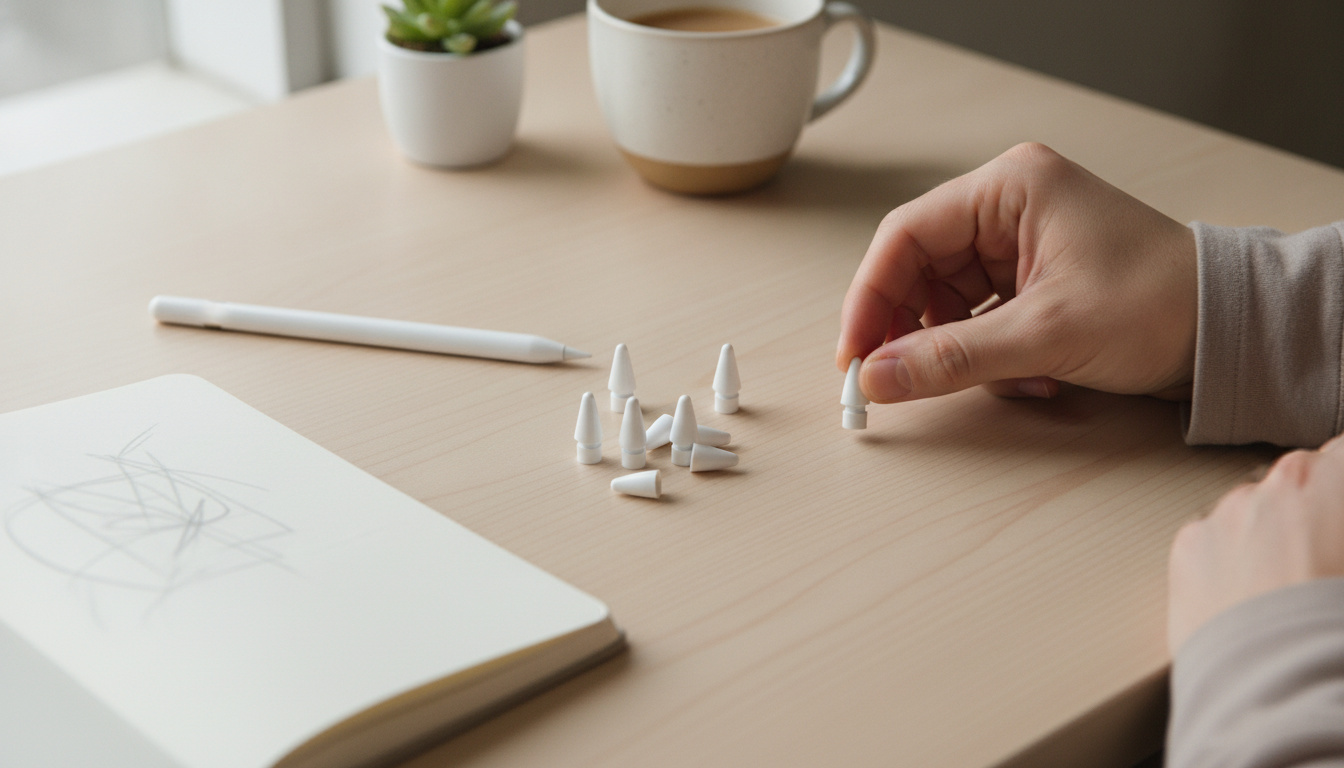
Worn or damaged Apple Pencil tips can make strokes feel scratchy, reduce accuracy, and increase screen noise. A fresh set of replacement nibs restores a smooth glide, consistent line control, and dependable performance for note-taking, sketching, and design work—without changing how the Pencil handles.
A replacement nib is a small swap that can have an outsized impact on how the Apple Pencil behaves at the screen. Because the nib is the physical contact point, its shape and surface condition directly influence stability and feel.
Replacement tips are designed to work with Apple Pencil (1st generation) and Apple Pencil (2nd generation). The best results come from matching the nib type to your Pencil model and getting a straight, snug screw-on fit. If the Pencil ever feels loose at the tip—or lines wobble—remove and re-seat the nib to confirm the threading is clean and aligned.
| Device | Nib Fit Expectation | Common Sign of Mismatch |
|---|---|---|
| Apple Pencil (1st gen) | Screws on smoothly; no wobble | Threads feel rough or won’t seat fully |
| Apple Pencil (2nd gen) | Screws on flush; stable tip | Tip feels loose or shifts under pressure |
| Other styluses | Not guaranteed | Inconsistent writing or poor seating |
When the nib wears down, the Apple Pencil can feel less “locked in,” especially during slow, deliberate strokes. Fresh nibs help restore the tip’s geometry so the Pencil tracks more predictably across the screen—useful for both creative work and quick everyday writing.
How long an Apple Pencil tip lasts depends less on time and more on surface texture, pressure, and cleanliness. Some setups are simply harder on tips than others.
For cleaning guidance, follow Apple’s recommendations for safe care: Apple Support: Clean Apple products. For Apple Pencil basics and usage notes, see Apple Support: Use Apple Pencil with iPad.
Swapping nibs is quick, but a careful approach helps protect the threads and ensures the tip seats correctly. Always replace by hand and avoid tools that can strip or deform the connection.
| Step | What to Do | What to Avoid |
|---|---|---|
| Remove | Unscrew the old nib by hand | Using pliers that can damage threads |
| Clean | Wipe tip area and screen | Installing over dust or grit |
| Install | Screw on until snug | Overtightening |
| Verify | Write/draw and check for wobble | Ignoring looseness that affects accuracy |
Most people notice nib wear as a gradual shift in feel rather than a sudden failure. If any of the signs below show up—even after cleaning the screen and re-seating the tip—it’s usually time for a fresh nib.
A few habits can make the Pencil feel more consistent day to day and help each nib last longer—especially if you use textured screen protectors.
| Item | Price | Availability |
|---|---|---|
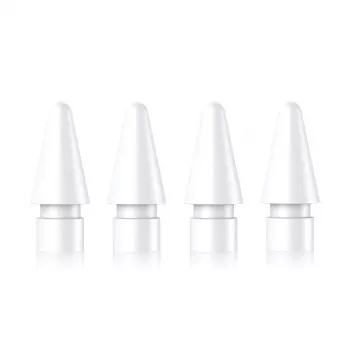
| Precise and Durable Replacement Nibs for Apple Pencil (1st & 2nd Gen) | $2.01 | In stock |
Pressure and tilt are detected by Apple Pencil sensors, while the nib mainly influences contact feel, friction, and stroke consistency. A properly fitting nib should preserve normal pressure and tilt behavior.
Clean the screen, check for fine grit, and confirm the nib is seated straight and snug. Matte screen protectors can also add texture and friction, which may feel scratchier even when everything is working correctly.
Heavy daily drawing—especially on matte “paper-like” protectors—can require more frequent replacement, while casual note-taking on bare glass often lasts much longer. Replace when you notice flat spots, skipping, wobble, or persistent scratchiness.







Leave a comment